Why Your Inbox Is Quietly Draining Your Productivity (And How Auto Reply in Outlook Fixes It)
You’re drowning in emails—again. The auto reply in Outlook isn’t just another feature; it’s your secret weapon against the notification fatigue and context-switching tax that erodes focus. Imagine reclaiming hours each week with one-click responses that work even while you sleep. But here’s the catch: most people set it up wrong, turning a productivity tool into another digital annoyance. The real question isn’t *how* to enable auto replies—it’s how to make them work *for* you, not against you.
The Hidden Psychology of Auto Replies (And Why Yours Might Be Backfiring)
Auto replies aren’t just about saving time—they’re about managing expectations. A poorly crafted message can frustrate senders, make you seem robotic, or worse, signal unavailability when you’re actually swamped with high-priority work. The key? Auto reply in Outlook should mirror your real-world communication style. For example, a vague "I’ll get back to you soon" leaves recipients guessing, while a specific "I’m reviewing proposals until Friday—expect a response by Monday" sets clear boundaries. Even better: use Outlook’s rules engine to tailor replies based on sender (e.g., VIPs get a different message than newsletters). This isn’t just about automation; it’s about automating empathy.
Outlook’s Auto Reply Arsenal: Which Tool Fits Your Workflow?
Outlook doesn’t offer just one auto-reply solution—it gives you three, each designed for different scenarios. The Out of Office Assistant is the most well-known, but it’s only the beginning. For internal teams, Quick Steps can fire off templated replies with a single click, while Power Automate (Microsoft’s automation platform) lets you build dynamic replies that pull data from SharePoint or CRM systems. The table below breaks down when to use each:
| Tool | Best For | Pros | Cons |
|---|---|---|---|
| Out of Office Assistant | Vacations, leave, or predictable downtime | Simple setup, works offline, supports HTML formatting | Limited to date ranges, no conditional logic |
| Quick Steps | Frequent but non-urgent replies (e.g., "Thanks for your email—I’ll review and respond by EOD") | One-click replies, customizable shortcuts | No scheduling, requires manual trigger |
| Power Automate | Complex workflows (e.g., "If sender is a client, reply with contract status from SharePoint") | Advanced logic, integrates with 300+ apps | Steep learning curve, overkill for simple use cases |
The 5-Minute Setup That Most Users Overlook (But Shouldn’t)
Setting up auto reply in Outlook takes less time than brewing coffee—if you know the shortcuts. For the Out of Office Assistant, skip the clunky File > Info menu and use the keyboard shortcut: Alt + H, B, A (Windows) or Command + Shift + B (Mac). Pro tip: use the "Send replies only to my Contacts" option to avoid spamming strangers with your vacation notice. For Quick Steps, create a template with placeholders (e.g., "[NAME], thanks for reaching out! I’m prioritizing [TASK] this week—will circle back by [DATE]") to personalize replies at scale. And if you’re using Power Automate, start with Microsoft’s pre-built templates for common scenarios like "Acknowledge receipt of support tickets." The goal isn’t perfection; it’s progress without friction.
When Auto Replies Become a Liability (And How to Avoid the Pitfalls)
Auto replies are powerful, but they can backfire spectacularly if misused. The biggest mistake? Treating them as a "set and forget" tool. For example, enabling Out of Office for a week-long conference but forgetting to update the end date—leaving senders hanging for days. Or worse, using the same generic reply for every scenario, which can come across as dismissive. To mitigate risks, auto reply in Outlook should include: (1) a clear timeframe (even if it’s "within 48 hours"), (2) an alternative contact for urgent matters, and (3) a touch of personality (e.g., "I’m heads-down on a project, but if this is urgent, text me at 555-1234"). For teams, coordinate auto replies to avoid conflicting messages (e.g., "Our team is out of office, but Jane is covering emergencies"). Finally, audit your auto replies quarterly—language that worked a year ago might feel tone-deaf today. The best auto replies don’t just save time; they preserve relationships.
How to set up automatic Outlook out-of-office replies | Windows Central

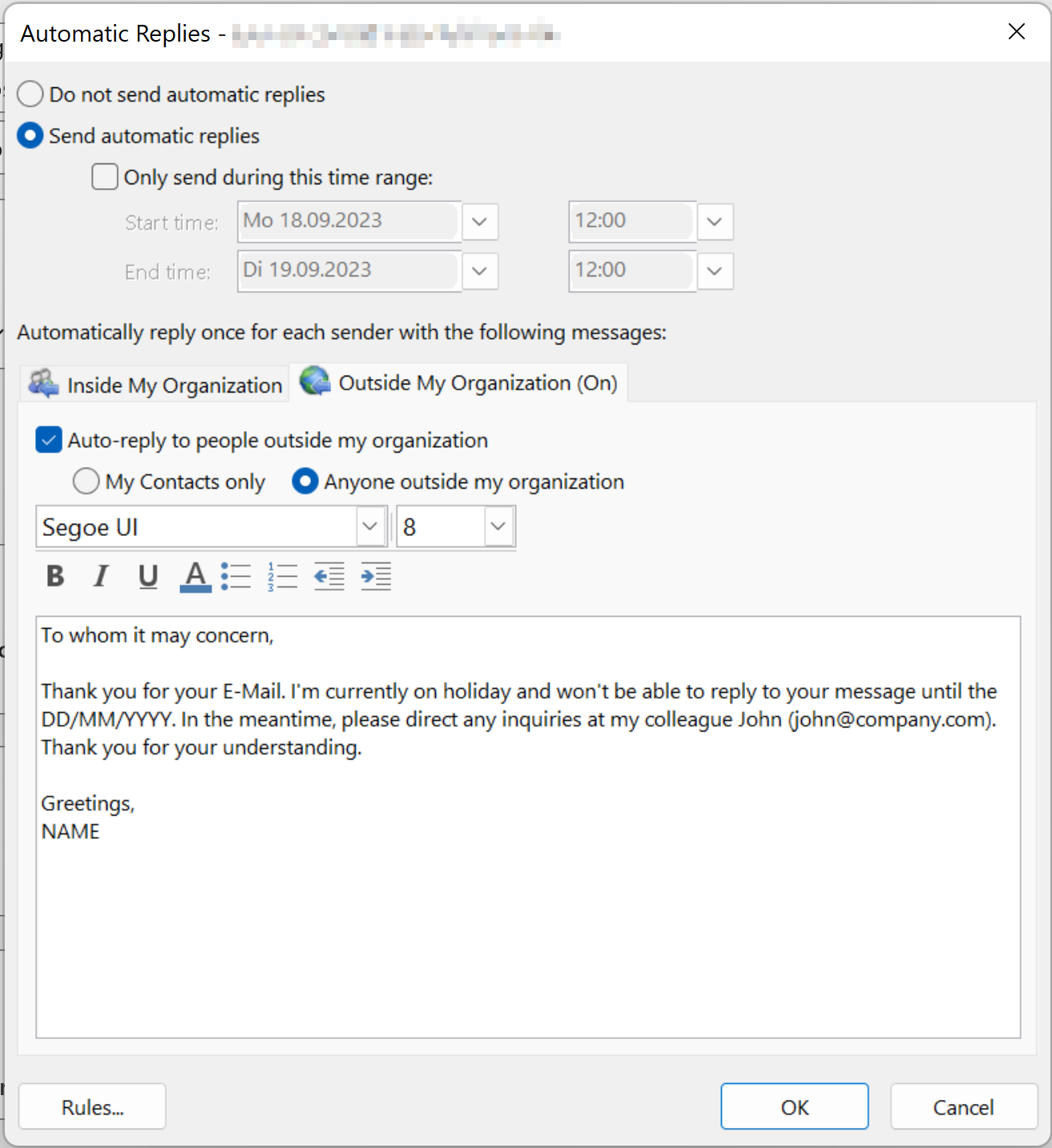
Outlook auto reply settings window with rules and notifications options displayed clearly on screen now available always.
Download Printable →How to set up an out-of-office reply in Outlook - IONOS
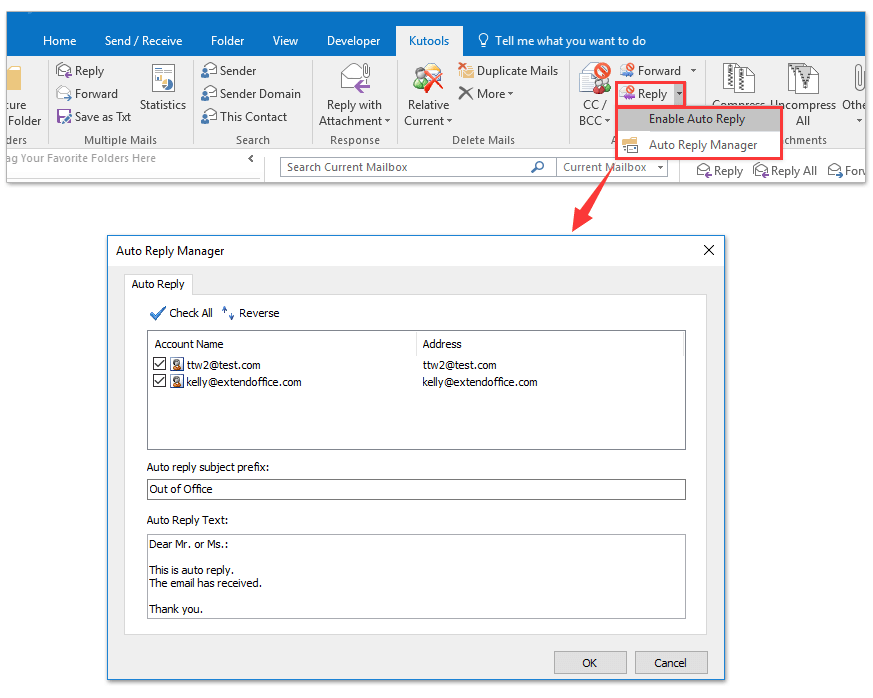
Auto reply message composition window with formatting tools and recipient options shown in detail always visible here.
Download Printable →How to set out of office (automatic reply) in outlook?
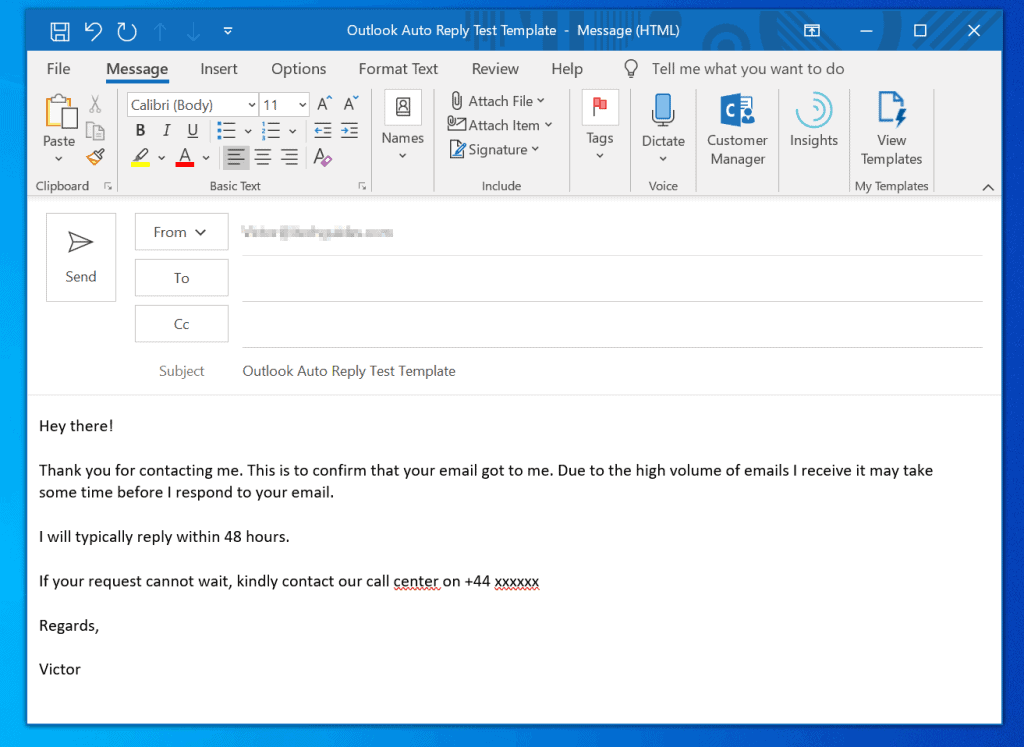
Outlook automatic reply configuration screen with enable and disable buttons prominently shown on top always accessible now.
Download Printable →Outlook Auto Reply Message Setup - Send Automatic Outlook Replies
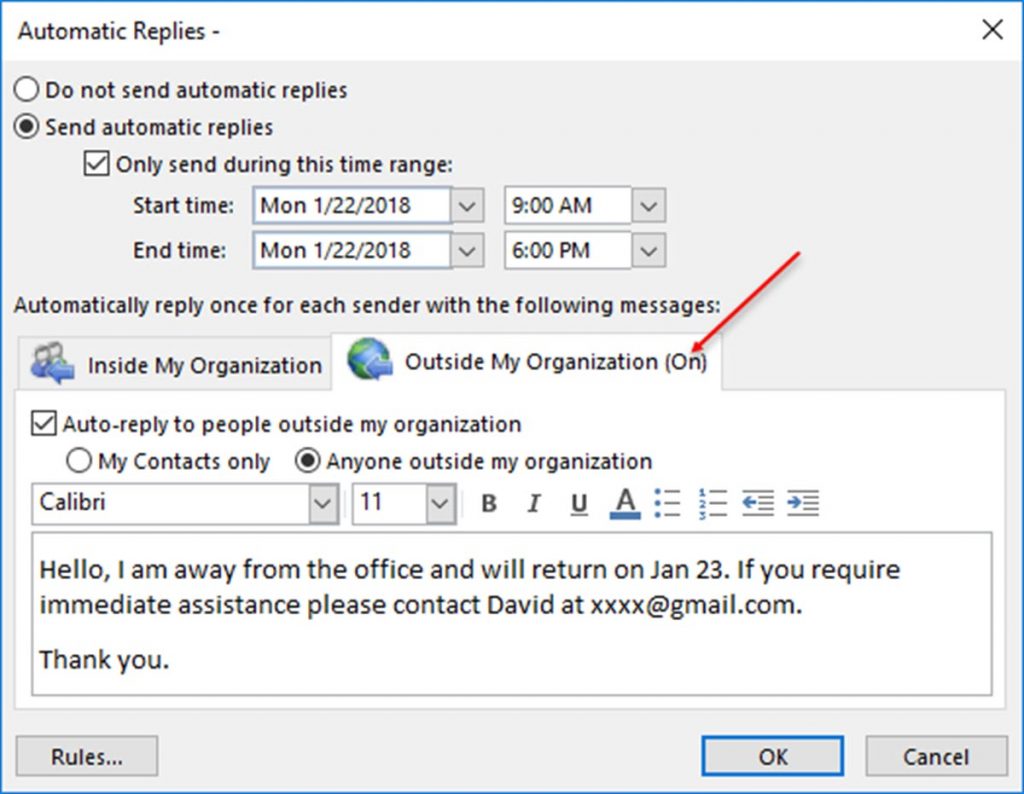
Email client interface displaying auto reply options and settings for customization and personalization always available here now.
Download Printable →How to Set Up Out of Office Auto-Reply in Outlook - ExcelNotes
Automatic reply rule setup window with conditions and actions specified in a step-by-step process clearly explained always.
Download Printable →Set Up an Out of Office Auto-Reply in Outlook
:max_bytes(150000):strip_icc()/out-of-office-vacation-auto-reply-1173771-B-v1-5b19846aeb97de0036bd47a3.gif)
Outlook inbox showing auto reply messages received from senders with notification alerts and subject lines displayed.
Download Printable →MS Outlook Help with How to set automatic reply for emails in Outlook 2016
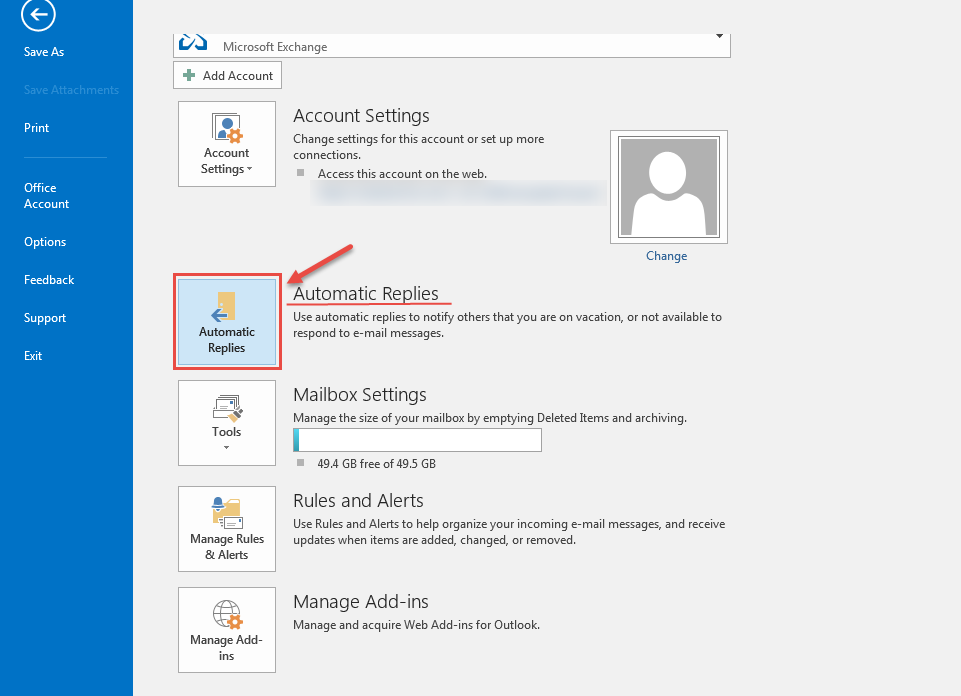
Auto reply template selection screen with pre-designed templates and customization options available for users always now.
Download Printable →How to Set Automatic Replies in Outlook
:max_bytes(150000):strip_icc()/emailrulestab-1ed59e54d4954b129be512c83a63c793.jpg)
Settings menu in Outlook with auto reply option highlighted and selected for configuration and setup now done.
Download Printable →How to Set Automatic Replies in Outlook
:max_bytes(150000):strip_icc()/ooomessage-5c625bf758cf4f97a5597d0be668e913.jpg)
User composing an auto reply message with text formatting and attachment options available always here now.
Download Printable →How to Set Up Outlook Automatic Reply | MyExcelOnline

Automatic reply settings saved and confirmed with a success message and notification alert displayed on screen.
Download Printable →How to set up auto-reply in Microsoft Outlook - YouTube
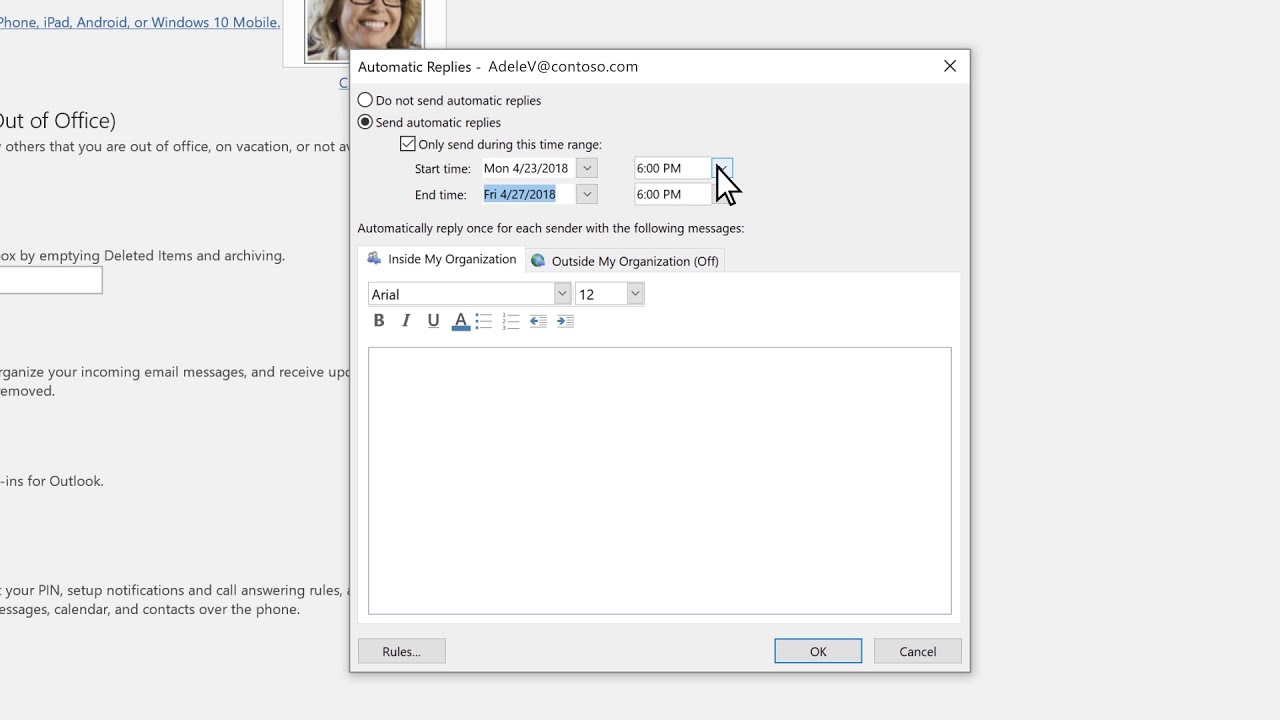
Outlook auto reply feature enabled and activated with a toggle button and confirmation message shown always.
Download Printable →How to Set Automatic Replies in Outlook
:max_bytes(150000):strip_icc()/2016outlook.comreplies-64b289ca1b4f4a5f9959f96fa7a15f22.jpg)
Auto reply message editor with text formatting and editing tools available for customization and personalization always now.
Download Printable →How Do You Turn Off Automatic Replies In Outlook - Design Talk
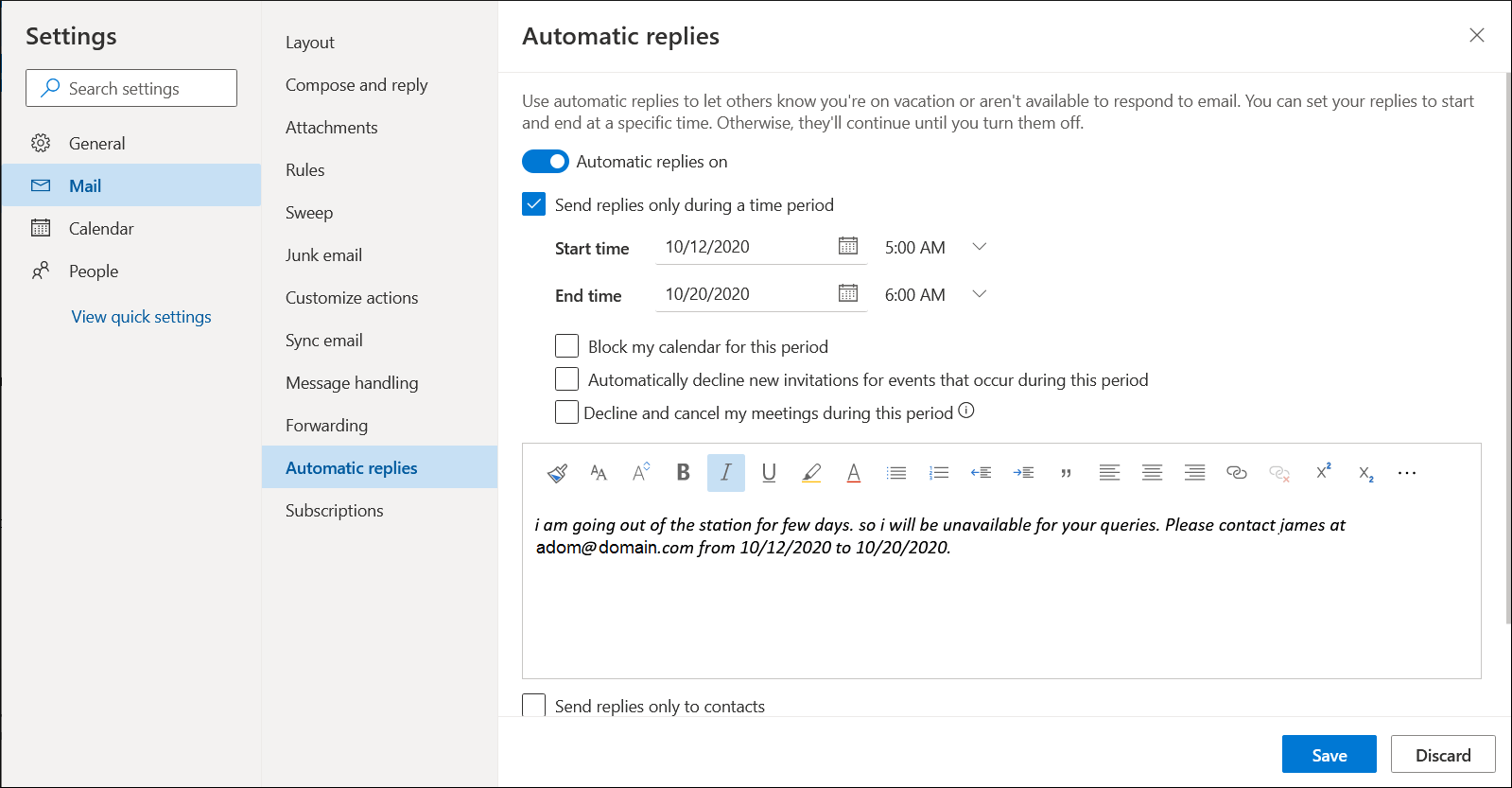
Outlook interface displaying auto reply messages and notifications with sender information and subject lines shown clearly always.
Download Printable →Set Up an Out of Office Auto-Reply in Outlook
:max_bytes(150000):strip_icc()/out-of-office-vacation-auto-reply-1173771-A-v1-5b198429eb97de0036bd3d33.gif)
Auto reply configuration summary window with settings and options reviewed and confirmed before saving always now.
Download Printable →